

Bulk payment and transaction actions
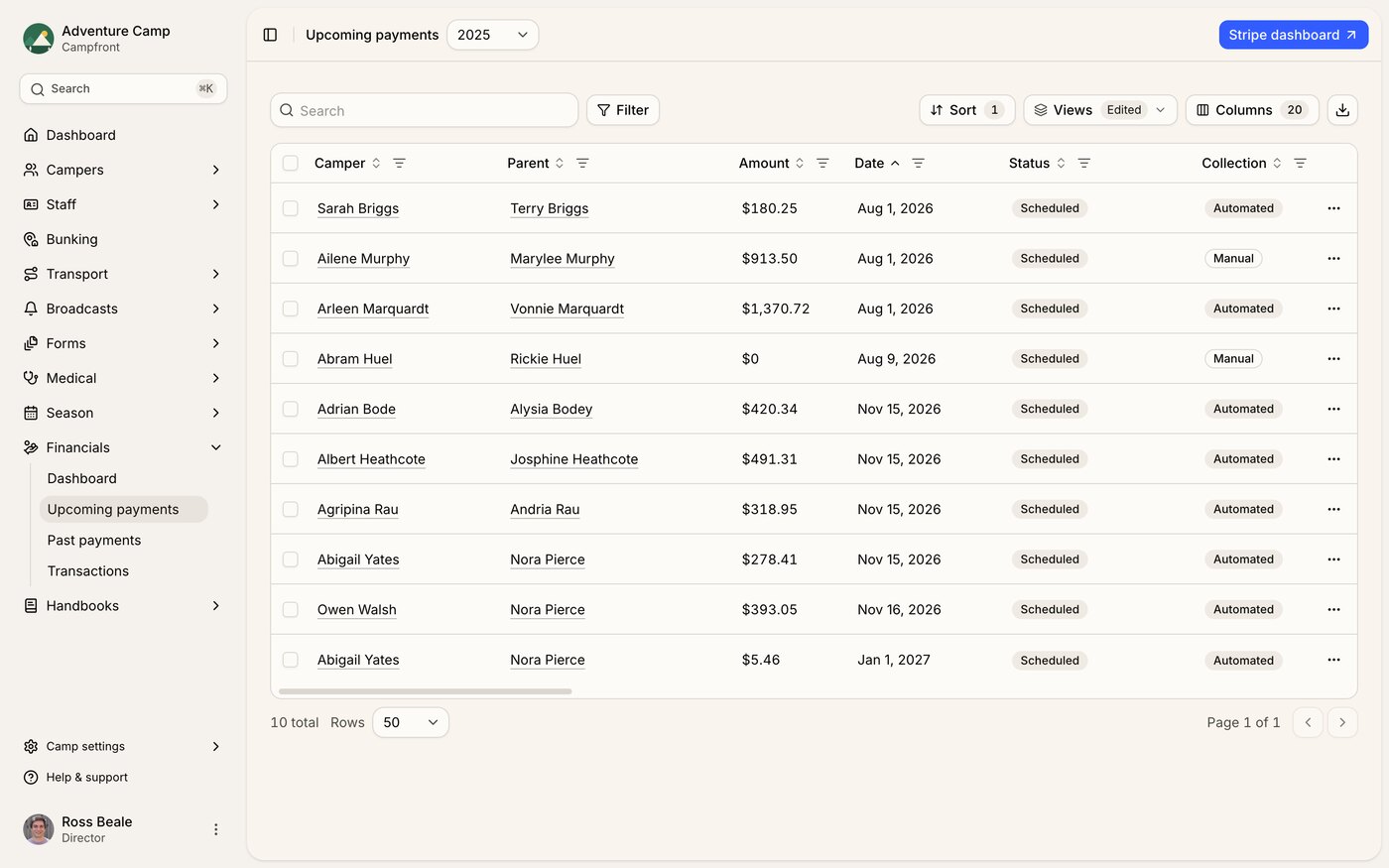
The three Financials datatables, Upcoming payments, Past payments, and Transactions, each let you act on many rows at once. This is how you handle season-scale money work, like pushing every installment date after a start-date change or chasing a batch of failed cards, without opening families one at a time.
Tick the rows you want, or select every row that matches your current filters, then open Actions and choose what to do. These actions run in the background and tell you how many rows they touched when they finish.
Bulk actions skip rows that aren't eligible. Each action only touches the rows it can act on and quietly passes over the rest. So selecting 40 payments and voiding won't always void all 40. It voids the ones that can be voided, and the result message tells you how many it processed out of the number you picked.
Actions on the payment lists
The Upcoming payments and Past payments lists share four bulk actions.
Edit payments
Set a new payment date, a new collection type, or both, across the payments you selected. Collection type is either Automated, charged for you on the due date, or Manual, collected by hand. Leave a field on No change to keep it as is. Only payments you can still edit are updated. Ones that have already been collected are skipped.
Charge now
Collect the selected payments right away instead of waiting for their due dates. Use it to retry a batch of failed cards or pull scheduled charges forward. Check payments can't be charged this way, so they're skipped.
Send invoices
Email each selected family the invoice for their payment. Paid and voided payments are skipped, since there's nothing left to invoice.
Void payments
Remove the selected payments from the schedule. This works on payments that haven't been collected yet, plus offline payments (check, cash, or wire) that have been marked received - and it can't be undone. Card and bank payments that have cleared through Stripe still need a refund instead. View the Refunds, voids, and balance adjustments article for how that works.
When you run one of these from Past payments, a warning reminds you that only the eligible past payments will change. Past payments are usually already paid or voided, so most actions there skip most rows. The common reason to act in bulk from this list is retrying failed cards, which appear here once their due date has passed.
Actions on the transactions ledger
The Transactions list has two bulk actions.
Mark as received
Confirm pending receivables, like a scholarship or another expected credit you logged before the money arrived. It affects only entries still marked Pending. Everything else is skipped, and the message names how many it passed over.
Delete
Remove credits and debits you added by hand. Payments and any entry the system created automatically can't be deleted, so they're skipped. Because it can't be undone, you'll type DELETE to confirm.
How this differs from a family's billing tab
The actions above run across your whole season. A family's Billing tab has its own, smaller set of bulk actions that work within that one family, like changing who's paying, switching payment methods, splitting payments between two parents, or voiding a few together. Those apply straight away to that one family. The season-wide actions here run in the background and report how many rows they touched.
Exporting
Every Financials datatable can export to CSV from the export control in its toolbar, so you can pull a season's payments or ledger into a spreadsheet. For sorting, filtering, saved views, and exports across all datatables, view the Using Datatables article.
Who can run bulk actions
Bulk actions need edit access to Financials. Team members with view access can open the lists and export them, but the Actions menu appears only for people who can make changes.