

Campfront command bar
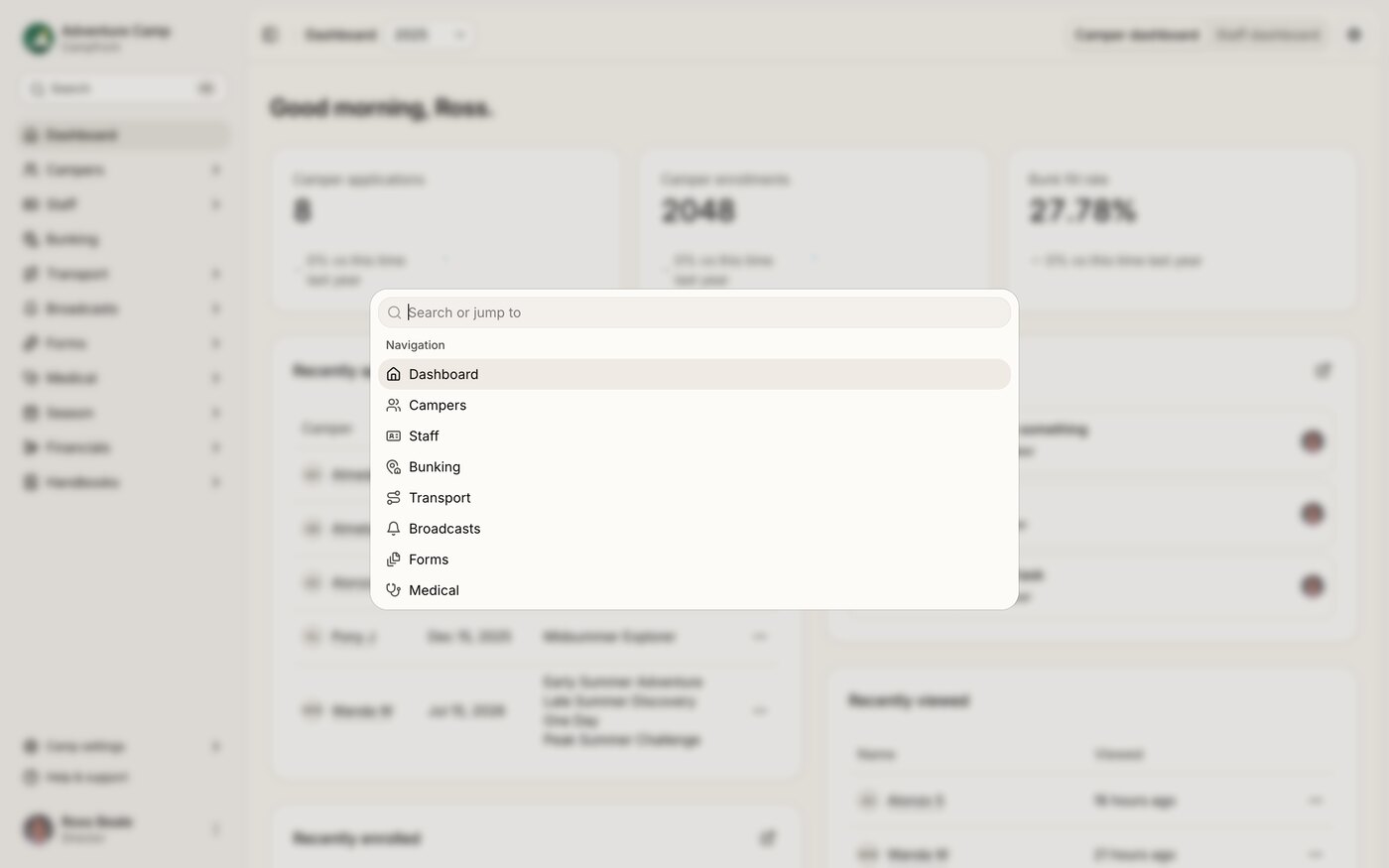
Opening the command bar
There are two ways to open the command bar:
Keyboard shortcut - press Cmd + K (Mac) or Ctrl + K (Windows).
Search box - click the search box at the top of the left-hand sidebar.
The command bar appears as a floating palette in the center of the screen.
Searching for people and pages
Start typing a name to search for campers, staff, families, and parents. Matching profiles appear instantly, letting you jump straight to someone's record without navigating through menus.
You can also search for any section in Campfront - type a keyword like "broadcasts" or "bunking" and select it from the results to navigate there directly.
Context-aware actions
The command bar adapts to the page you're currently on, surfacing relevant quick actions. For example, when viewing an enrollment profile, you can:
Change the enrollment stage
Impersonate the parent, which appears once they've set up their own account
Add activity to log a call, email, SMS, or other communication
Add a note
Type the action you want (e.g., "Change stage") and select it from the list. These shortcuts make it faster to complete frequent tasks without clicking through multiple menus.
What you can access
From the command bar you can reach:
Any section or sub-section from the sidebar navigation
Your task list, user settings, and notification preferences
The Help Center
Camper, staff, family, and parent profiles by name
Page-specific actions based on where you are
Tips
Results filter instantly as you type - no need to press Enter.
The command bar searches both navigation items and available actions, so you can move or act from one place.
Use it as your default way to get around Campfront - it's almost always faster than clicking through menus.