

Administering medication
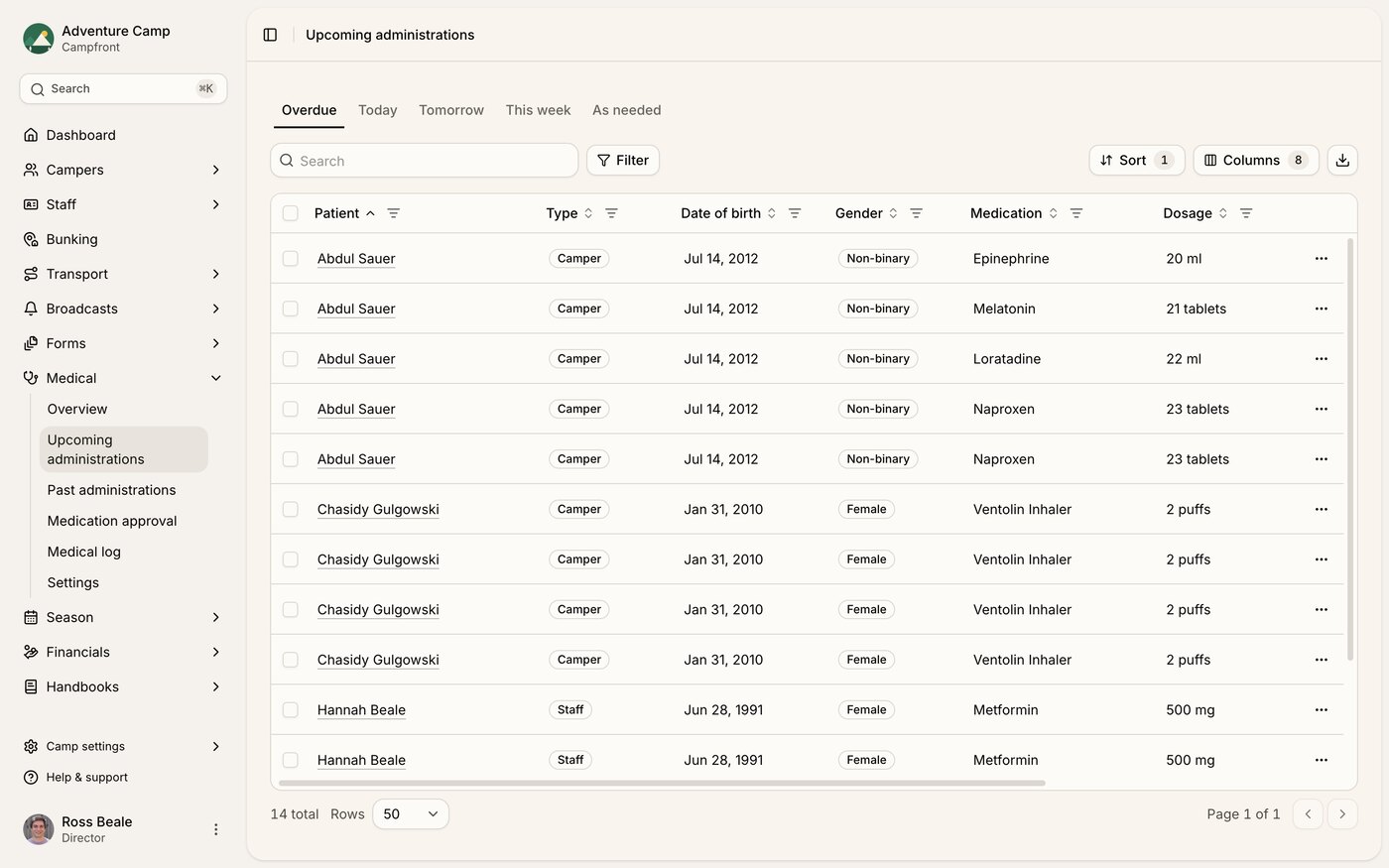
Once a medication is approved, Campfront builds its dosing schedule for you and lists each dose on the Upcoming administrations screen under Medical. Your team works through that queue, marking each dose as given, missed, or skipped. Every action is recorded with who did it and when, so you keep a complete dispensing record without any paper. This article is for the nurses and health officers who run the medication round.
How the schedule is built
You don't create individual doses by hand. When a medication is approved, Campfront generates its administrations from the schedule set on the medication, and keeps the next 30 days filled in as time rolls forward.
A daily medication creates one dose for each delivery time it uses (breakfast, lunch, dinner, bedtime)
A weekly medication creates a dose on each chosen day of the week
A monthly medication creates a dose on its chosen day of the month
As-needed medications work differently. They live on their own tab instead of a fixed schedule. The article Situational and PRN medications covers those.
Doses only appear here once the medication is Approved. If a scheduled dose is missing, check the medication's status on Medication approval first.
Finding the right doses
Upcoming administrations gives you two rows of tabs so you can zero in on what's due.
Date tabs - Overdue, Today, Tomorrow, This week, and As needed
Time tabs - your camp's delivery windows, Breakfast, Lunch, Dinner, and Bedtime by default
The Overdue tab only shows when there are overdue doses, and it's where the screen opens whenever any exist, so the most urgent work is front and center. Campfront pre-selects the delivery window closest to the current time, so if you open the screen mid-morning you land on that window's doses. Time tabs don't apply to the This week, As needed, and Overdue views.
Marking a dose
Open the actions menu on any pending dose and choose an action.
Mark as administered - when the dose was given, with optional notes
Mark as missed - when a scheduled dose wasn't given, with a required reason
Mark as skipped - when a dose was intentionally held, with a required reason
Campfront records you as the person who acted and stamps the time automatically. Anything you write goes into the administration log. Whatever you record shows up on Past administrations and on the person's profile, so the next person on shift sees the full history.
As-needed medications only offer Mark as administered. There's no fixed schedule to miss or skip, so those actions don't apply.
Working through doses in bulk
When a whole delivery window went as planned, you don't have to mark each dose one at a time. Select several pending doses, open Actions, and choose Mark as administered, Mark as missed, or Mark as skipped to update them together. As with single doses, missed and skipped need a reason, and it applies to the whole selection. A large batch keeps processing in the background while you move on.
Logging an off-schedule dose
Sometimes you give a dose that wasn't on the schedule, like an as-needed prescription or an over-the-counter medication given outside the usual round. Go to Past administrations and use Add administration. Search for the camper or staff member, pick the type, and record the route, dosage, date, time, and reason.
The type is one of their approved prescriptions, an approved over-the-counter medication, or Other for anything else. The date and time can't be in the future.
Reviewing what's been given
Past administrations lists every recorded dose for the season, newest first, showing whether it was administered, missed, or skipped, who administered it, and any notes. Filter by patient type to separate campers from staff. Export the list as a CSV or PDF for your records or an end-of-season report.
Who can do this
Anyone with view access to Medical can see the queues. Marking doses and adding administrations needs edit access. Access is set per role in your permission settings.