

Building staff contract templates
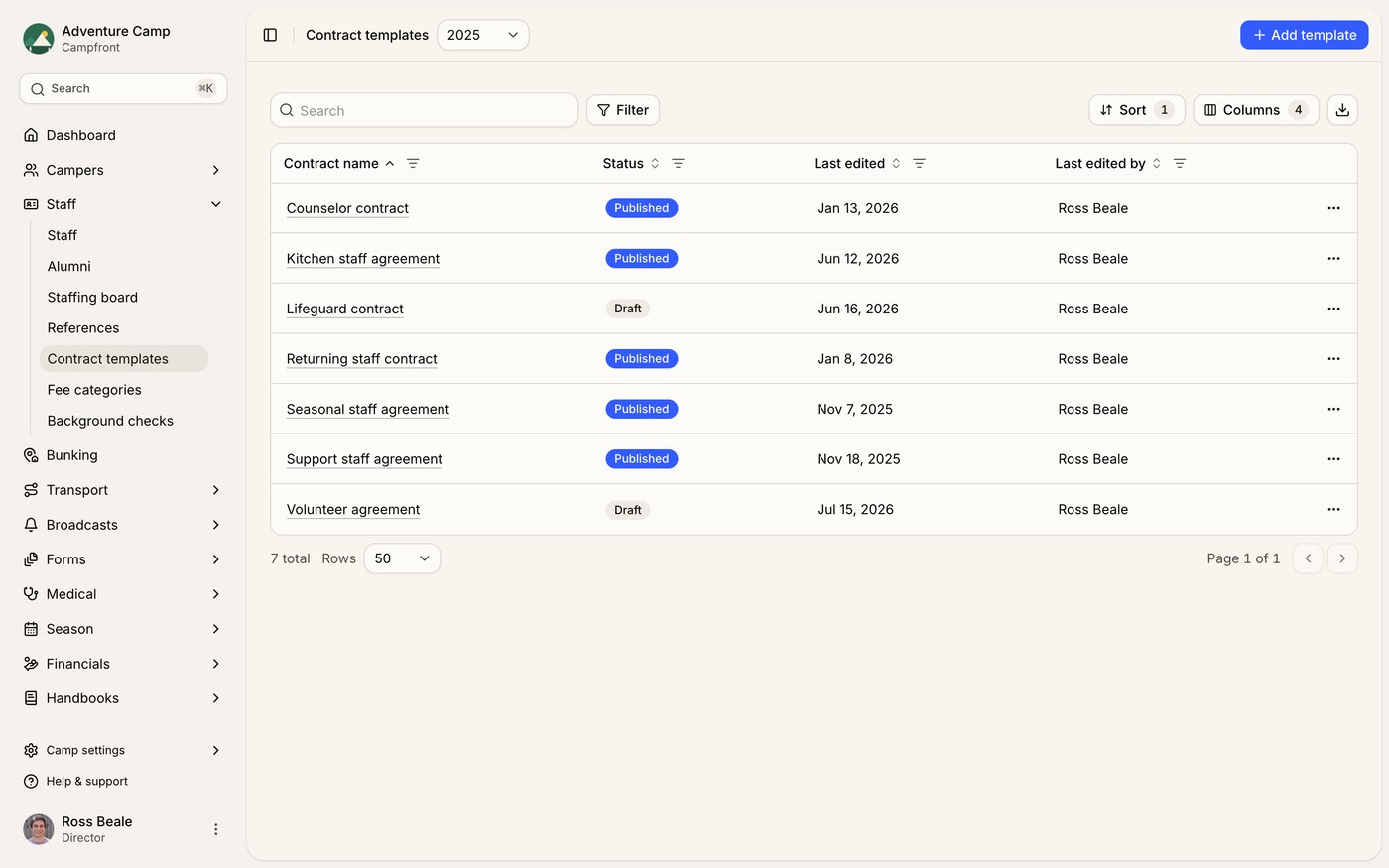
Managing templates
Navigate to Staff > Contract Templates. The templates table shows each contract's name, status (Draft, Published, or Unpublished), last edited date, and who edited it.
Draft templates are hidden and not available for use until published.
Published templates can be selected when sending a contract to a staff member.
Unpublished templates were published before but have since been taken out of circulation. Contracts already built from them are unaffected, but you can't start a new contract from an unpublished template until you publish it again.
Creating and editing a template
Use the rich text editor to build your contract content, with the same formatting tools you'll find in other Campfront editors.
Merge tags - use
{{ }}brackets to insert dynamic fields that auto-populate with staff details when a contract is generated. This includes merge tags from any fee categories you have set up.Version history - every save creates a new version automatically, so you can review changes over time and restore an earlier version if you need to undo a change.
Save as draft - save your work without making the template available for use.
Publish - make the template available for sending contracts.
Recruitment fees
Recruitment fees are managed within the Information tab of each staff profile. You can track agency costs, transport fees, and custom recruitment expenses. Fee types are managed centrally through Fee categories.
For more detail, see the Fee categories article.
Tips
Keep one master template per role or department to stay organised.
Use merge tags wherever possible to reduce manual edits and errors.
Regularly review drafts before each camp season to ensure details are up to date.