

Bunking boards
Getting started
Head to Bunking in the main menu and select a season. Each session has its own dedicated bunking board, so pick the session you want to work on.
When setting up a board for the first time, you'll see two options:
Copy from another session - duplicate cabin structures and assignments from an existing session. You can choose whether to copy camper assignments, staff assignments, or both.
Start fresh - begin with a blank board and build from scratch.
Creating cabins
Click Add bunk and fill in:
Name - a recognizable name for the accommodation (e.g., "Pine Lodge", "Cabin 4").
Public Name (optional) - an alternative display name shown to families and staff. Defaults to the cabin name if not set.
No. of campers - the number of camper spots available.
No. of staff - the number of staff spots available.
Genders - select which genders the cabin accepts (male, female, non-binary).
Camper Groups - assign the applicable camper groups (age/skill divisions) to control which campers can be placed here.
Cabins can be reordered by dragging them into your preferred layout. You can also duplicate a cabin to quickly create another with the same settings, or reset an individual cabin to clear its assignments without affecting the rest of the board.
AI cabin generation
If you'd rather not set up cabins manually, click the Ask AI button in the toolbar. Describe what you need in plain language - for example, "Create 12 cabins with nature-themed names, 8 camper spots and 2 staff spots each, split evenly between boys and girls" - and the system will generate your cabin structure automatically. You can specify naming themes, capacity, gender restrictions, and camper group assignments in your prompt.
Assigning campers and staff
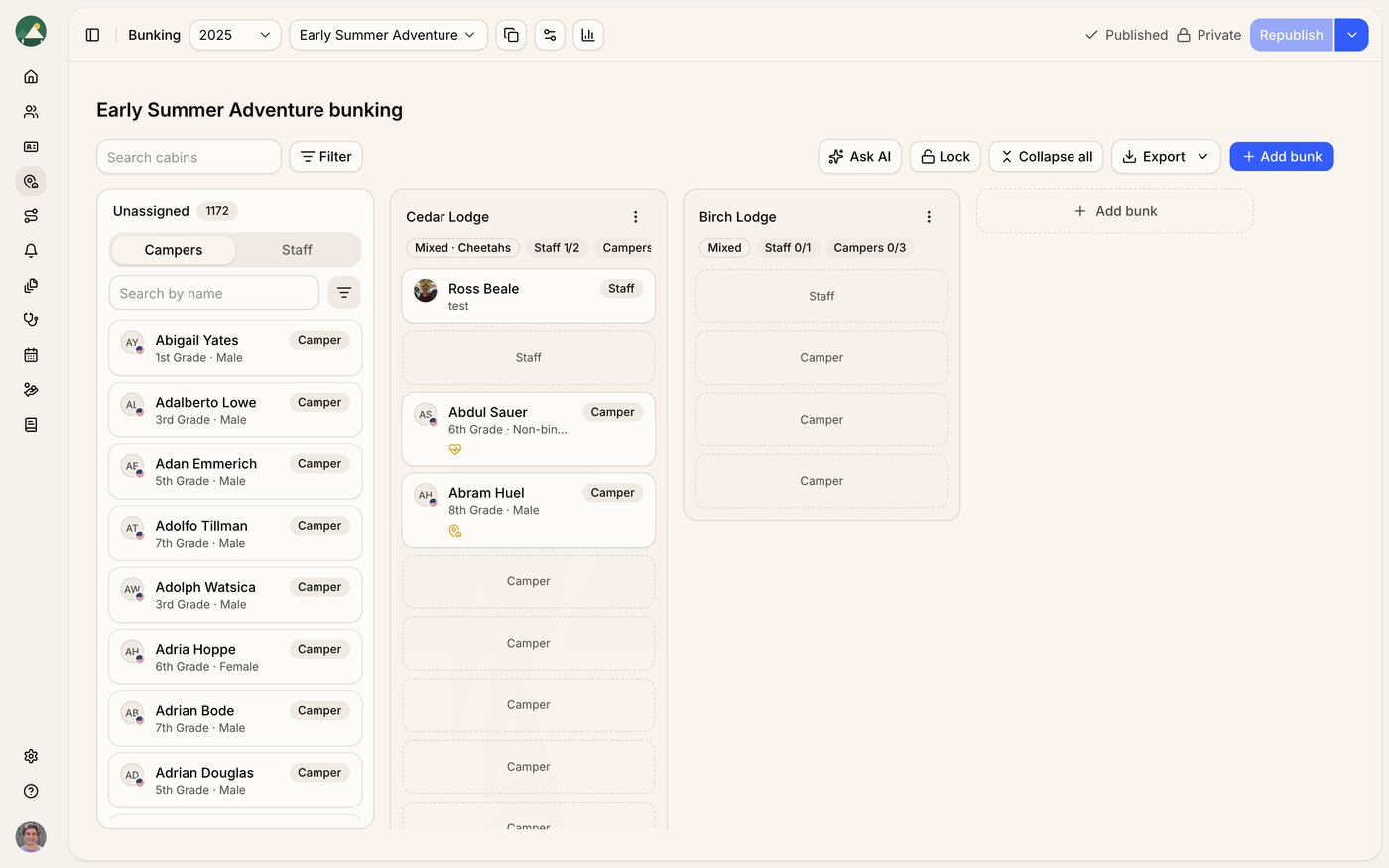
The sidebar on the left shows all unassigned campers and staff for the selected session. Assign someone by dragging their tile from the sidebar into the appropriate cabin.
Tabs - switch between the Campers and Staff tabs in the sidebar.
Search - search by name to quickly find a specific person.
Filters - narrow the sidebar by gender, session, camper group, or stage.
Icons - tiles display icons for bunking notes and medical considerations, giving you a quick heads-up before placing someone.
Quick view - click any tile to open a slide-out panel with the individual's full details without leaving the board.
To unassign someone, drag them back to the sidebar or use the unassign action on their tile.
Each cabin shows its current occupancy at a glance - for example, "Staff: 2/3, Campers: 6/8" - with color coding that turns red if a cabin is over capacity.
Board toolbar
The toolbar at the top of the board gives you access to the main controls:
Lock/Unlock - lock the board to prevent accidental changes while reviewing. When locked, a badge shows who holds the lock (e.g., "Locked by Sarah"). Other team members cannot edit the board until it's unlocked.
Collapse/Expand - collapse all cabins for a high-level overview, or expand them to see individual assignments.
Statistics - toggle the stats panel to see a live summary of your board: total cabins, filled and open positions, and breakdowns by gender and role (camper vs staff). Stats update automatically as you make changes.
Cabin search - search across cabin names and occupant names to quickly locate someone on the board.
Cabin filters - filter cabins by state (filled or unfilled), gender, or camper group.
Board Settings
The bunking board includes two enforcement settings, available from the settings option in the board toolbar.
Enforce cabin criteria - when enabled, campers can only be placed into cabins that match their gender and camper group, and staff can only be placed into cabins that match their gender. Turn this off if you want the flexibility to place people across groups or genders without restriction.
Restrict cabin over-allocation - when enabled, cabins can't take on more campers or staff than their capacity allows. Turn this off if you need to go over capacity.
If you already have placements that don't match a setting, Campfront lists the conflicts for you before the setting takes effect, so you can review them first.
Copying boards across sessions
If your cabin layout is similar across sessions, you can save time by copying:
Copy to other sessions - from the toolbar, click Copy assignments and select one or more target sessions. Choose whether to copy camper assignments, staff assignments, or both. This will override any existing assignments in the target sessions.
Copy from another session - available when setting up a new board, this pulls in the cabin structure and assignments from a session you've already configured.
Individual cabins can also be duplicated within the same board - the copy is created with "(copy)" appended to the name.
Board statuses
Bunking boards move from draft to published:
Draft - the starting point, before anyone's been assigned.
Unpublished changes - shown once you start assigning people, or after you publish and then keep editing. Your changes are saved, but your admin team won't see them on individual profiles until you publish.
Published - assignments are saved to camper and staff profiles. Publish again any time as assignments change, and the board shows whether it's published public or published private.
Publishing and sharing
Publishing and sharing are two separate steps, giving you full control over visibility:
Publish - click Publish to save assignments to individual camper and staff profiles. Your admin team will be able to see cabin assignments on each profile. You can publish multiple times as assignments evolve.
Make public - once published, you can make the board public to show cabin assignments in the parent and staff portals. Make it private again at any time to hide assignments from families and staff while you make further changes.
This two-step process lets you finalize assignments internally before deciding when to share them externally.
Exporting
Bunking boards can be exported in two formats:
CSV export - downloads a spreadsheet of all cabin assignments including occupant names, type (camper/staff), age, grade, gender, group or department, and session. Blank rows are included for unfilled capacity, making it easy to see remaining availability.
PDF export - generates a visual bunking board document with your camp logo, session name, publish status, and the date it was generated. Each cabin gets its own page showing occupancy stats, gender restrictions, camper group assignments, and a table of occupants with photos (if available). Useful for printing and posting at camp.
You can also export an individual cabin as a PDF from the cabin's menu.
Resetting a board
If you need to start over, you can reset the board from the publish menu. Resetting clears all cabin assignments and returns the board to Draft status. Your cabin structure (names, capacities, settings) is preserved - only the assignments are removed. The board is also automatically marked as private.
Resetting is only available when the board is unlocked.