

The Financials dashboard
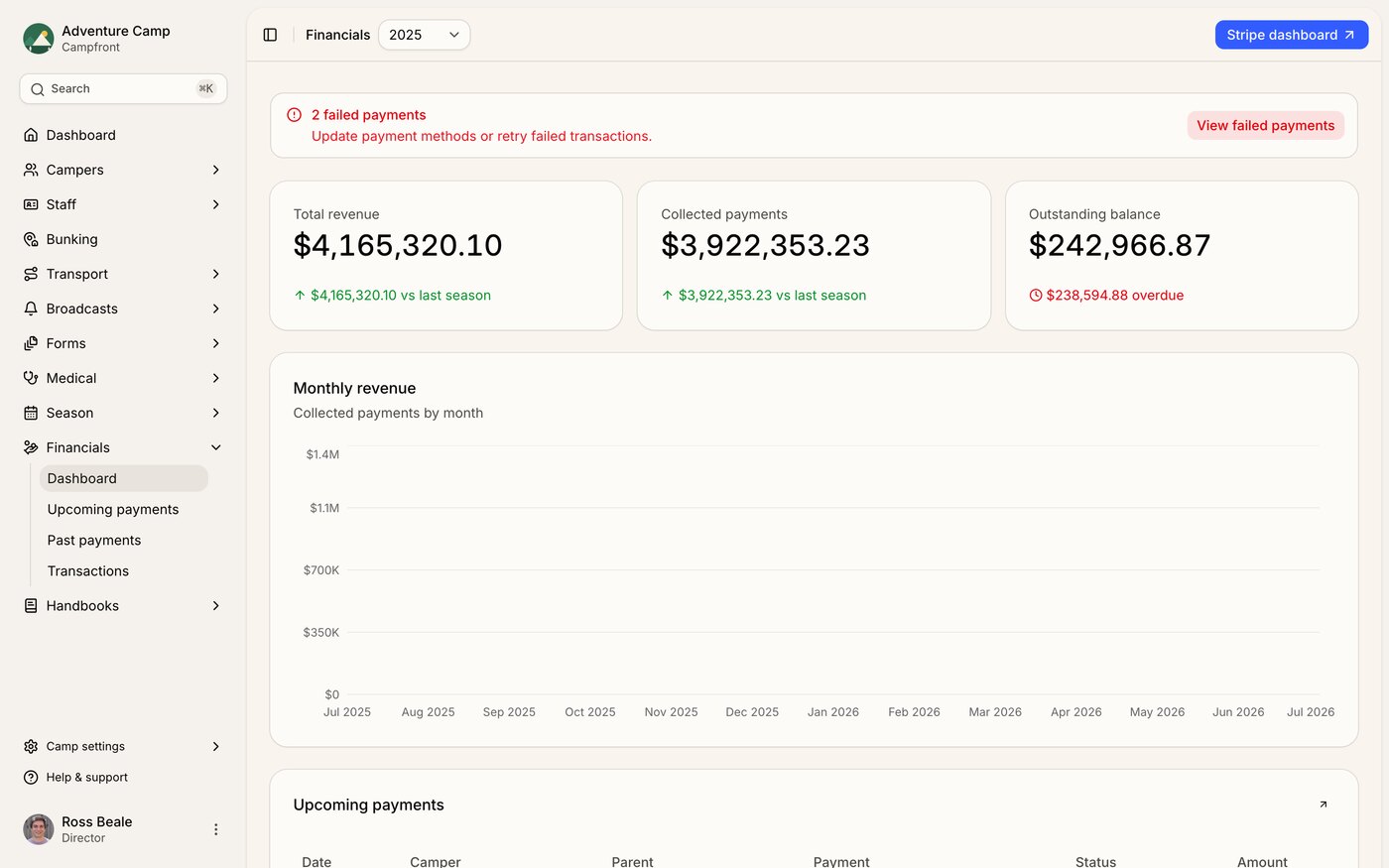
The Financials dashboard is your season-wide view of money across the whole camp. Where a family's Billing tab shows one camper's charges and payments, the dashboard rolls every enrollment in the season into a few headline numbers, a revenue chart, and quick previews of what's coming in, what's already landed, and every entry on your ledger.
Open it from Financials in the main navigation. Everything on the page covers one season at a time. When your camp runs more than one season, a season selector sits next to the title so you can switch years.
The headline numbers
Three cards sit at the top of the dashboard. Their labels are easy to misread, so it's worth knowing exactly what each one counts.
Total revenue - everything this season's enrollments are expected to bring in, whether or not you've collected it yet. It counts scheduled, processing, awaiting, and failed payments alongside the paid ones. Think of it as the season's booked value, not cash in hand
Collected payments - the money you've actually taken. This counts only payments marked as paid
Outstanding balance - the total still to come in. If any of it is past its due date, an overdue figure shows in red underneath
Total revenue includes money you haven't collected yet. It's the season's projected total, not your bank balance. For the cash you've actually received, read Collected payments.
The first two cards also show how you're tracking. When you have a prior season, they compare against it at the same point in the year, so a July number lines up against last July rather than last season's final total. Without a prior season, they show the change over the past week instead. Green points up, red points down.
The failed-payment alert
When a card or bank payment fails to collect, a red alert appears at the top of the dashboard and counts how many failed. Select View failed payments to jump straight to your past payments, filtered down to the failures. From there you can retry them or update the family's payment method.
Monthly revenue chart
Below the numbers, the Monthly revenue chart plots collected payments month by month across the season, so you can see when the money actually came in. It counts only paid payments, so it shows realized income rather than what's still scheduled. Before any payment lands, it reads No realized revenue.
The preview tables
The dashboard finishes with three short previews, each showing the five most recent or most imminent entries.
Upcoming payments - the next scheduled charges due
Past payments - the most recent completed and failed payments
Transactions - the latest activity on your ledger
Each preview has an arrow in its top corner that opens the full list, where you can sort, filter, and act on rows in bulk. Camper and parent names in every table link straight to their profiles.
Connecting Stripe
If your camp hasn't connected Stripe yet, a Set up Stripe button sits in the page header and takes you to your billing settings to get started. Once you're connected, that button becomes a shortcut to your Stripe dashboard, where payouts, disputes, and card details live. For how card and bank payments are processed, view the Processing payments with Stripe article.
Who can see the dashboard
The whole Financials area is gated by the financials permission. Team members without it won't see the Financials navigation at all. Viewing the dashboard needs view access. Making changes, like the bulk actions on the payment and transaction lists, needs edit access on top.