

Setting up your forms
Managing forms
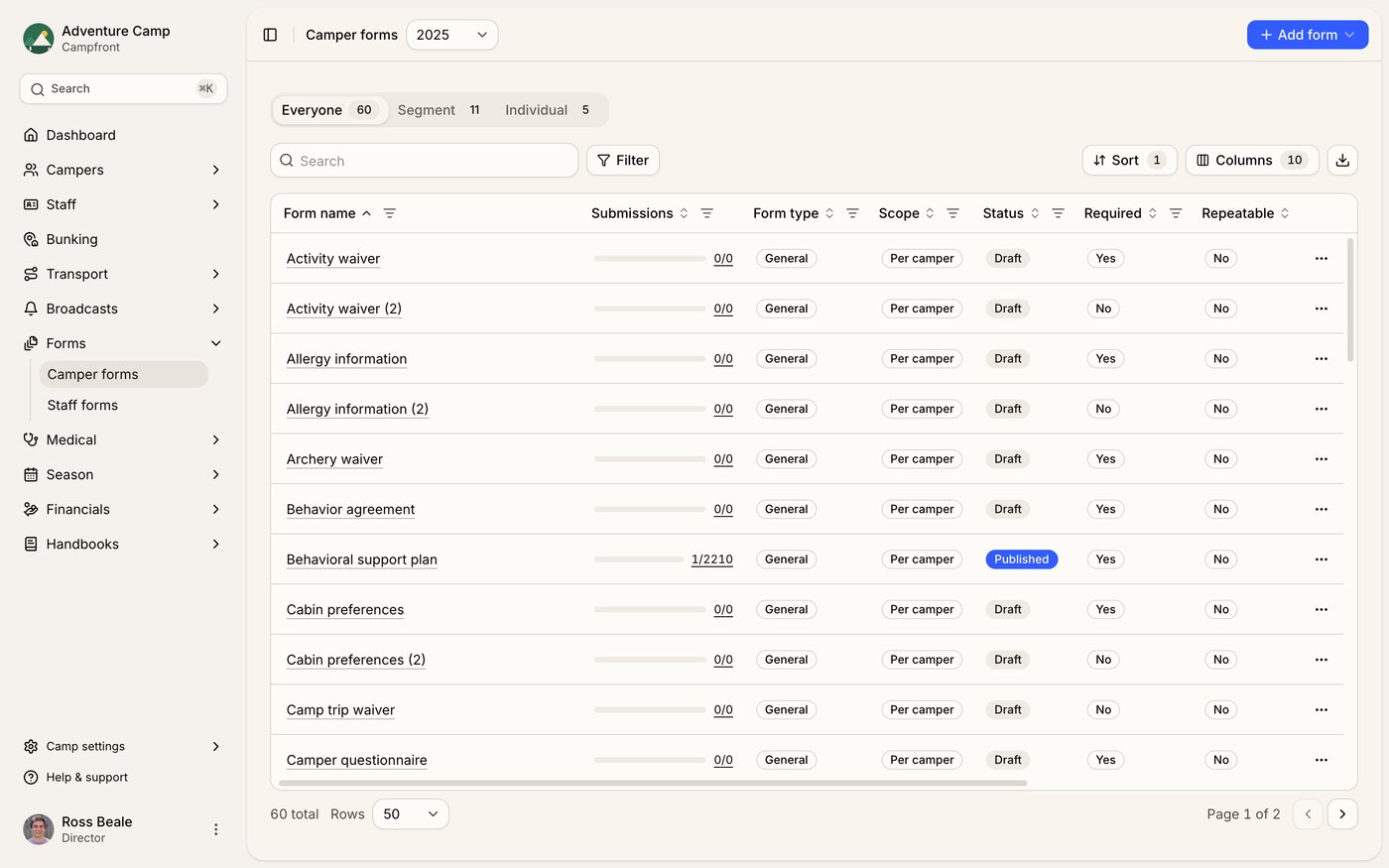
In the sidebar, select Forms to view your Camper forms or Staff forms.
Each view displays a table showing:
Form name
Submissions count
Type (Enrollment, Financial, General, Incident, Medical, Transport, Trip, or Confidential)
Required
Repeatable
Internal Only
Status (draft or published)
Last published / edited dates
Creating and editing forms
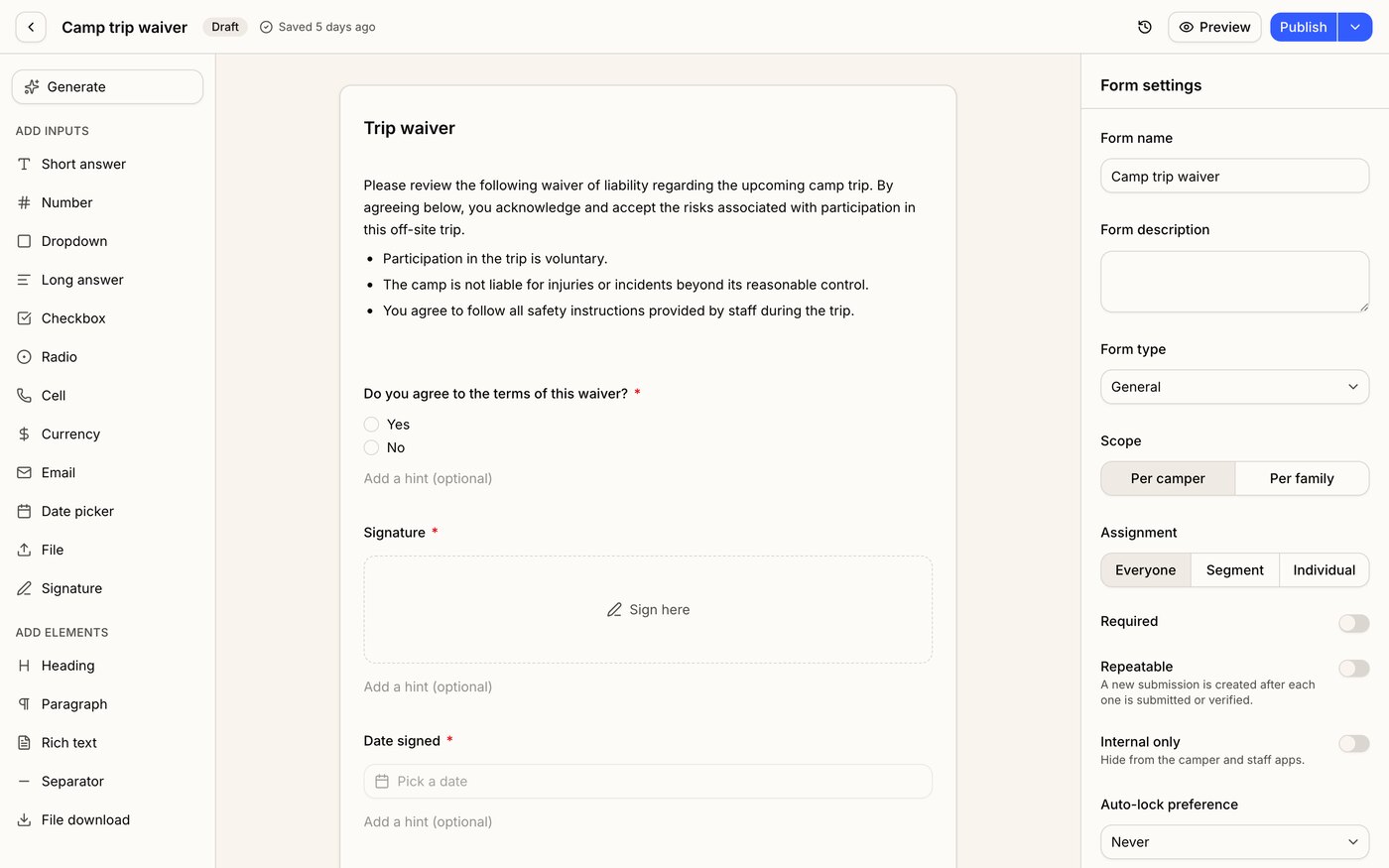
The form builder is split into three main sections:
Inputs (left panel) – drag and drop field types: short answer, number, dropdown, long answer, checkbox, radio, cell, currency, email, date picker, file, and signature. You can also add elements: heading, paragraph, rich text, separator, and file download.
Canvas (center) – build and preview the form layout in real time.
Settings (right panel) – adjust form name, description, type, due date, lock preferences, submission options, and visibility, including whether the form is accessible externally to parents and staff or kept internal to the admin team only.
Forms begin as drafts and can be published when ready, making them available for parents or staff to complete in their dashboards.
Form assignments
When assigning a form, choose from three assignment types:
Everyone - applies the form to every camper or staff member in that form's season.
Segment - build a layered audience by combining criteria such as camper groups, sessions, and tags. Forms are automatically removed if a user leaves a segment before submitting, but remain on their profile once completed.
Individual - build the form with its assignment type set to Individual, then assign it case-by-case from a profile's Forms tab. Ideal for one-off requirements that don't fit a broader category. Forms built as Everyone or Segment can't be one-off assigned this way.
Repeatable forms
Optional forms can be set as repeatable. Once a form is submitted or verified (your choice), the form becomes available to fill in again so a parent, staff member, or admin can start a new version when they're ready. A new version isn't created automatically, and all previous submissions stay on record. Set the repeatable preference to control whether the form reopens after submission or after verification.
Generating forms with AI
The Generate option helps you create forms faster. You can either:
Enter a short prompt (e.g. “Create a field trip permission form”), or
Upload a blank reference file (PDF or image).
Campfront will automatically generate matching fields based on your prompt or upload. You can then review and adjust the generated form before publishing, saving you significant setup time.
Revising forms with AI
Once a form has fields, the Generate button becomes Edit with AI. Describe the change you want, such as adding a question, rewording a label, removing a field, or reordering, and Campfront proposes an edit to your existing fields rather than rebuilding the form.
Each affected field is marked on the canvas as Added, Edited, Moved, or Removed. Select Apply to accept the changes or Discard to keep the form as it was. Nothing is saved until you apply.