

Camp settings
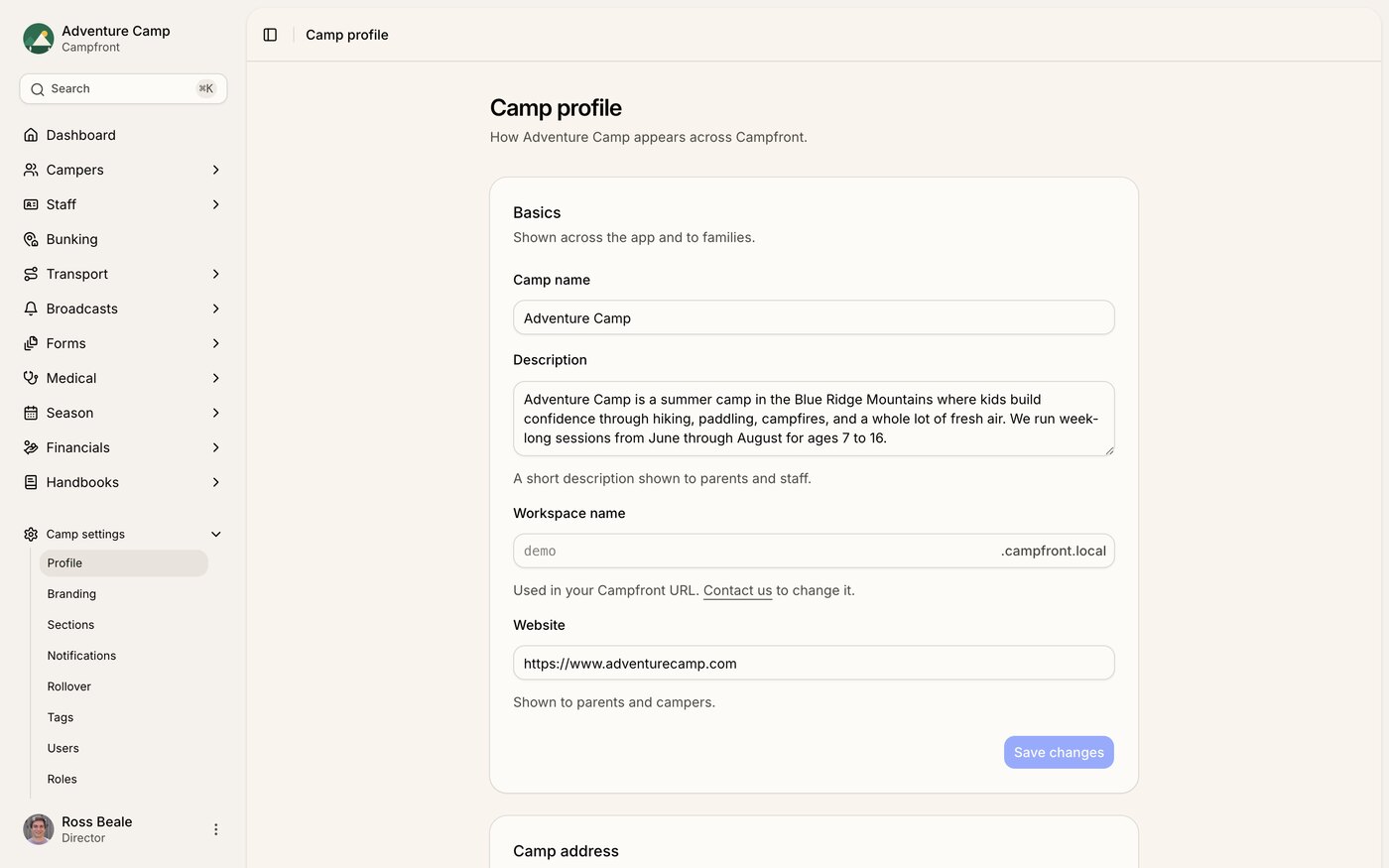
Profile
Set up your camp's public-facing details:
Camp name and website URL - these appear to parents, campers, and staff.
Branding - your logo, banner, cover image, and brand color are set on the separate Branding tab.
Addresses - add your camp address, office address, and phone numbers for summer and year-round communication.
Support emails - set separate support email addresses for parents and staff, which appear on their dashboards.
Click Save changes to apply your updates.
Tags
A central place to manage tags across your camp. See how many profiles are using each tag, create or delete tags, and organize them into tag groups for consistency.
For more detail, see the Tags and tag groups article.
Users
Invite your team to Campfront and manage their access. Each user is assigned a permission role (e.g., Owner, Admin, Member, View Only). From here you can track who's active, resend invitations, and update access.
For more detail, see the Permission roles and team management article.
Roles
Define how your team interacts with Campfront by creating and managing permission roles. Use the built-in roles or create custom roles with tailored access for areas like campers, staff, medical, financials, seasons, and settings.
Each feature area can be set to Hide, View, or Edit.
Security
Manage how your team signs in and control access to your workspace:
Enable Google or Microsoft single sign-on.
Restrict sign-in to specific email domains.
Set a default role for new users joining your workspace.
For more detail, see the Single sign-on and security article.
Billing
Manage your Campfront subscription and payment details:
View your enrollment pricing tier, which adjusts based on your active camper count.
Connect your Stripe account for processing camper payments.
Access invoices, set your sales tax ID, and specify where email receipts should be sent.
Integrations
Connect Campfront with external tools to automate workflows and sync data. Available integrations include Zapier, Data Streams (Google Sheets, OneDrive, Airtable, Notion), and MCP for AI assistants.
For more detail, see the Integrations collection.
Profile options
A few extra options live on the Profile tab:
Non-binary gender and pronouns - show gender identities beyond male and female, and add a pronouns field on camper and staff profiles, applications, and forms.
Grade terminology - choose whether camper grades are entered as the grade a camper is rising into or the grade they just completed.
Some enrollment and application requirements are set per season instead, since they can differ from one season to the next. Open a season and click Edit to change these:
Require camper photo, Require medical information, and Require education information for camper enrollments.
Require date of birth and Require gender for staff applications.