

Camper mail
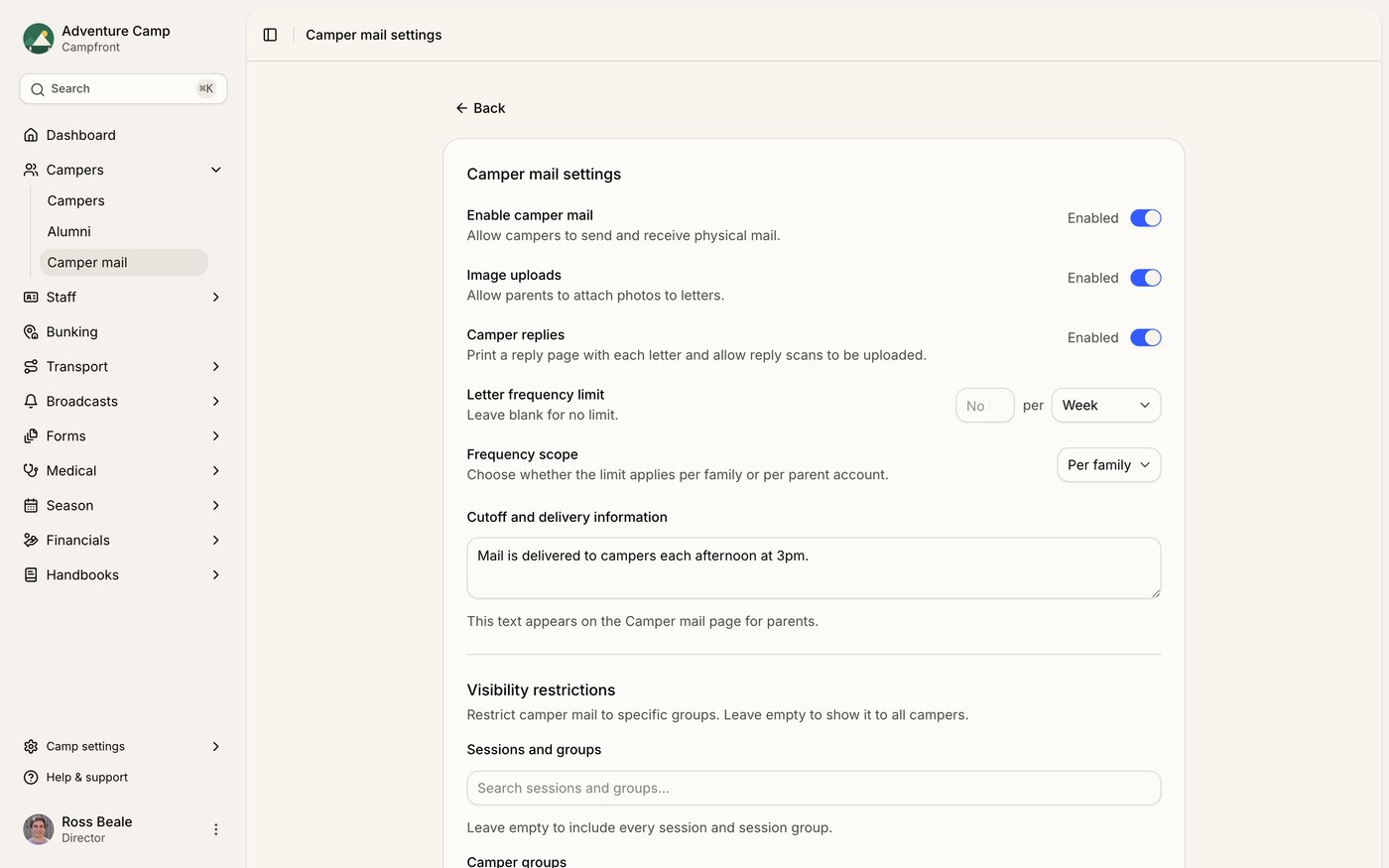
Configuring camper mail
Camper mail is configured at the camp level. Go to Campers → Camper mail, then open Settings from the page header to reach the settings page.
The main switches are:
Enable camper mail. The master on/off toggle. When off, the feature is hidden from parents entirely.
Image uploads. Lets parents attach one photo per letter. Photos are printed inline with the letter.
Camper replies. Prints a reply page with each letter and lets staff scan replies back in (see Processing reply scans below).
Letter frequency limit
You can cap how many letters a family can send per camper per day or per week. Set a number and choose day or week, or leave the number blank for no limit.
By default the limit is shared per family per camper , so both parents on a family account draw from one allowance. Use the Frequency scope setting to switch to Per parent , giving each parent their own separate allowance. Even under Per parent, both parents can still see every letter sent to their shared campers - unless the family is set up with separate households (see Family profiles), in which case each parent's letters are private to them and always draw from their own allowance, no matter the Frequency scope setting. Daily limits reset at midnight, and weekly limits reset at the start of the week. Parents see how many letters they have remaining for each camper, and the compose form is blocked once they hit the limit.
Cutoff and delivery information
Use the Cutoff and delivery information field to tell parents anything specific to your camp, for example:
Letters submitted before 9am will be delivered the same day. Anything after that goes out the following morning.
Whatever you enter appears as a banner on the parent camper mail page.
Visibility restrictions
By default camper mail is available to every family with an enrolled camper. If you want to limit it to a specific session, session group, or camper group, use the Visibility restrictions selectors at the bottom of the settings page. Leave both empty to make it available to everyone.
Admin workflow
Letters flow through four statuses: Sent, then Printed, then Delivered. If replies are enabled and a camper writes back, the letter also picks up a Replied status once you match the reply.
Go to Camper mail → Inbound to see all submitted letters. Filter by status, session, or camper as needed.
Select the pending letters and use Print selected, or use Print batch to print everything pending. Letters move to Printed as soon as the PDF is generated, and the system records who printed them and when. If replies are enabled, a reply page is included behind each letter.
Optional - after the letters are physically handed out at camp, mark them as Delivered.
The status changes are reflected in the parent's view of each letter.
Processing reply scans
If Camper replies is enabled, each printed letter includes a reply page with a QR code that ties it back to the original letter.
To process replies:
Collect the completed reply pages at camp.
Go to Camper mail → Outbound and start a new reply batch. Upload the scanned pages (PDF or image). This can be done in bulk.
Campfront scans each returned page's QR code to find the matching letter. Scans land in one of two states:
Matched. The QR code was read and matched to a letter. No action needed.
Unmatched. The QR code couldn't be read, from a torn page, a bad scan, or a blank reply. Open the scan, then either match it to the right letter manually or Reject it if it's unreadable, blank, or misfiled.
Once a reply is matched, the parent is automatically emailed that a reply is ready to view.
Batch progress can be monitored from the Outbound tab.
Inbound email address
If the camp has Postmark inbound set up, the settings page also shows a dedicated inbound email address. Replies forwarded to that address are ingested the same way as uploaded scans.
What parents see
Where it lives
Parents access camper mail from the parent portal via a Mail menu item. It's only visible if the feature is enabled for your camp and the parent has an active camper enrolled (respecting any visibility restrictions you've set).
Composing a letter
Parents click Compose letter, pick one or more of their campers, write a message, and optionally attach a photo (if image uploads are enabled). Writing to multiple campers at once creates a separate letter per camper. After submitting, the letter appears in their list with a Sent status.
Frequency limit badges - If a limit is set, small badges show each camper's remaining allowance, for example "Ada: 2 letters remaining this week". When a camper hits 0, they show as unavailable in the camper picker until the period resets. The Compose option itself is only hidden once every one of a parent's campers is at the limit. By default the allowance is shared across both parents on a family account; only under Per parent scope does each parent get a separate counter - except in a separate household, where each parent always has their own counter no matter the Frequency scope setting, since they can't see what their co-parent has sent.
Status badges on letters. Parents see the same statuses admins do:
Sent. Submitted, waiting to be printed.
Printed. Printed by staff, on its way to the camper.
Delivered. Physically handed to the camper.
Replied. The camper's reply has been matched and is ready to view.