

Managing your enrollment discounts
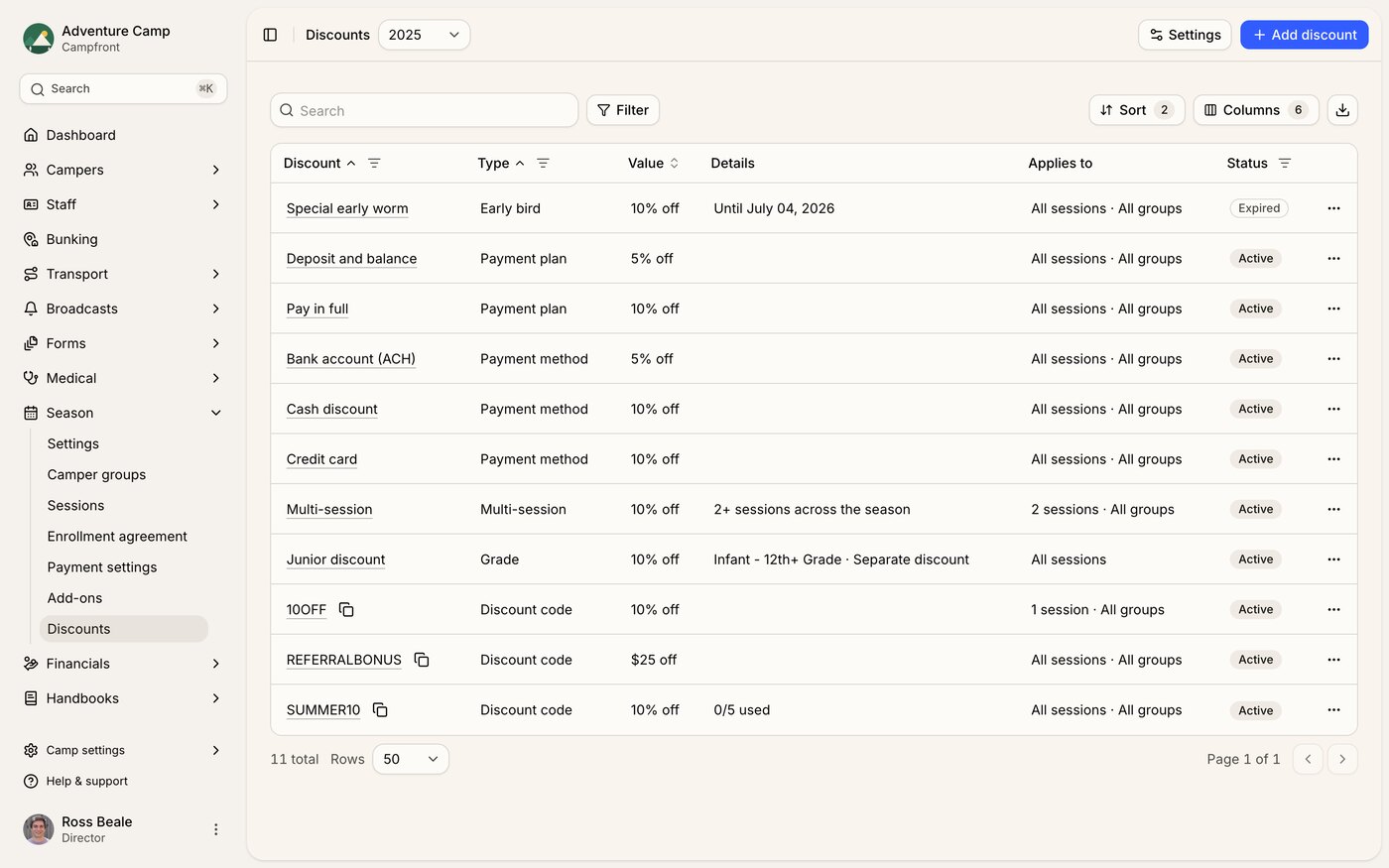
Viewing your discounts
Navigate to Season > Discounts to see every discount for the season in one table - automatic, grade-based, and codes together. Filter by Type or Status to find what you need. Click Add discount to create a new one, or Settings to manage discount stacking.
Automatic discounts
Automatic discounts are applied to families automatically based on specific conditions. Add the types you want to offer:
Early bird - discount for registering before a deadline. Set the discount type (percentage or fixed amount), the value, and the deadline date.
Payment plan - discount for choosing a specific payment plan at checkout. Pick which plan it rewards (pay in full, deposit, or installments), set the discount type and value, and optionally limit it to one payment method.
Payment method - discount for choosing a specific payment method at checkout (for example, paying by credit card). Set the discount type and value, and optionally limit it to one payment plan.
First-time camper - discount for new campers attending for the first time. Set the discount type and value.
Multi-session - discount for families enrolling in multiple sessions. Set the discount type, value, and the minimum number of sessions required before the discount applies. (e.g. 2 means discount after 2+ sessions)
Returning camper - discount for campers who attended in a previous season. Set the discount type and value.
Sibling - discount applied to additional children from the same family. Set the discount type, value, and the minimum number of children required before the discount applies. (e.g. 2 means 2nd+ child gets discount)
Grade-based - discount for campers in a specific grade enrolling in a specific session or session group. Set the discount type, value, the grade range it applies to, and the session or session group it applies to. This makes it easy to offer grade-specific pricing without relying on manual discount codes.
Discount codes
Discount codes are unique codes families can enter at checkout to receive a discount. They appear in the same discounts table as your automatic and grade discounts, each with a button to copy the code.
Creating a discount
To create a new discount, click Add discount in the top-right corner of the page. First choose a Type - an automatic discount or a discount code. For an automatic discount you then pick a Trigger (such as Early bird or Sibling). The details below apply when you're setting up a discount code:
Code - Create your discount code using uppercase letters and numbers only (e.g. ALUMNI2025).
Description (internal) - optional, to help your team identify what the code is for.
Discount type - choose Percentage or Fixed amount, then enter the value.
Percentage – A percentage reduction of the total fee (e.g., 10% off).
Fixed Amount – A set dollar amount (e.g., $50 off).
Expiration Date (optional) - set when the code stops working. Leave blank for no expiration.
Usage Limit (optional) - cap how many times the code can be used in total. Leave blank for unlimited.
Single Use - check this to ensure each family can only use the code once.
Session eligibility - select which sessions the code applies to.
Session group eligibility - select which session groups the code applies to. Sessions and session groups are independent lists; leave both unchecked to apply to all bookings.
Camper group eligibility - select which camper groups the code applies to. Leave all unchecked to apply to every group.
Click Save to finalise your discount. It will then appear in your list for that season and become available for use when inviting families to enroll campers.
Settings
The Settings button opens a sheet that controls how multiple discounts interact with each other when a family qualifies for more than one.
Discount stacking
Stack all discounts - each discount is calculated on the original session price and combined. Discount codes are then applied to the discounted total.
Best single discount only - only the single highest-value automatic discount is applied. Discount codes are then applied to the discounted total.
Cap total discount - all discounts and codes stack, but total savings cannot exceed a set percentage of the session subtotal. If exceeded, each discount is reduced proportionally.
Set the Maximum discount percentage to define the cap.
Applying discounts during enrollment
When inviting a camper to enroll, you can choose from your pre-set list of discounts or create a one-off custom discount directly in the Enrollment Options screen.
This flexibility allows you to apply both general and unique discounts depending on the situation.
If a discount has a valid until date, it will automatically stop applying once that date passes - ensuring expired offers can’t be used during checkout.